
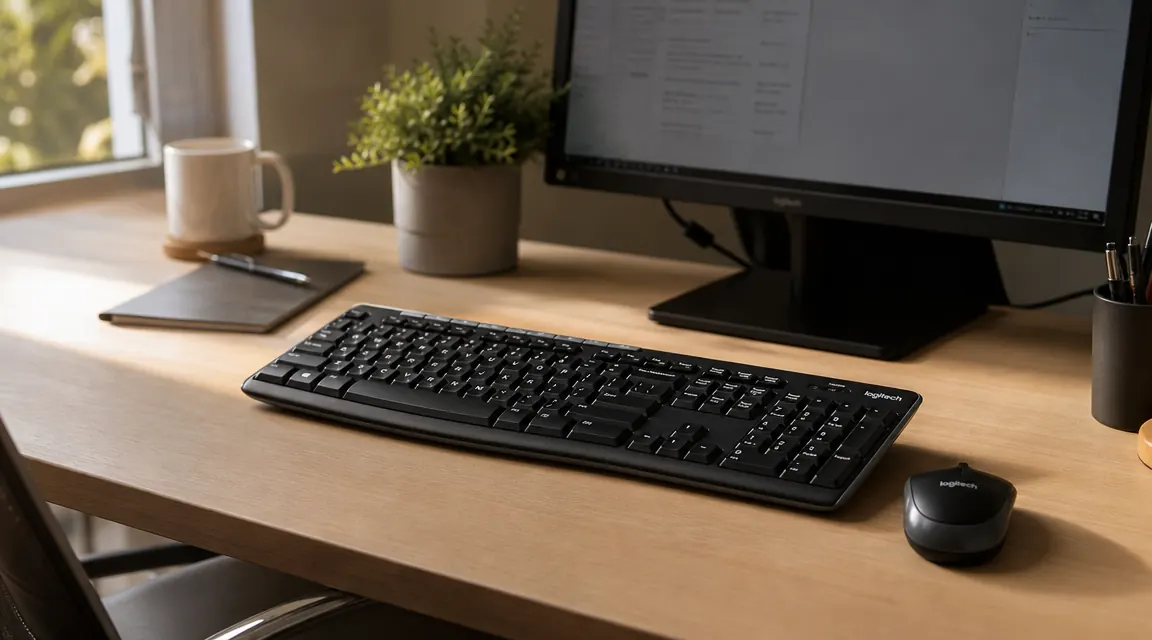
Two years ago I needed a spare keyboard and mouse for my secondary desk setup. I had a short list of requirements: wireless, reliable, not expensive, and not ugly. I ordered the Logitech MK270 on a Monday, had it by Wednesday, plugged the tiny receiver into a USB port, and never thought about it again. That is genuinely what happened. And two years later it is still on that desk, still working, still running on the same set of AA batteries in the mouse. That is either a testament to how well it was designed, or a reminder that I do not use that desk as much as I should. Probably both.
This review covers what two years of real use has shown me about the MK270, including key feel, the Unifying receiver, mouse tracking quality, what the battery life claims actually mean in practice, and where this combo genuinely falls short. If you are shopping for a no-cable, no-fuss wireless combo under $30 and want a real assessment rather than a spec sheet summary, keep reading.
The Quick Verdict
The most reliable sub-$30 wireless combo you can buy. Not exciting, not ergonomic, not mechanical. Just consistently works, and keeps working.
Amazon Check Today's Price →Still buying the same combo after two years. Here is the current price.
The Logitech MK270 is the wireless keyboard and mouse combo I recommend to anyone who wants wire-free and does not want to overthink it. One receiver. Two devices. Done.
Amazon Check Today's Price on Amazon →How I Have Used It
My main setup is a home office desk where I do most of my work. The MK270 lives on a secondary surface about four feet away from my main workstation. I pull it over when I need to work from the couch end of my desk or when my main mechanical keyboard is occupied by something plugged into a different machine. It has lived through apartment moves, road trips where it rode loose in a bag, two desktop computer upgrades, and at least four different monitors. It has never been re-paired. The receiver has never come out of the USB port it was plugged into on day one.
Usage volume is moderate, not heavy. Call it two to four hours a day on days I use it. The weeks I am on the road it sits idle. This is relevant context for the battery life numbers I give later. Your mileage will differ if you are on this keyboard eight hours a day.
I have not tested it in a controlled lab. I have tested it by actually using it across a realistic home office environment that includes a router, a microwave, cordless earbuds, and the general wireless congestion you get in a home with multiple people and their devices. Nothing has caused a dropout.
Key Feel: Exactly What You Would Expect at This Price
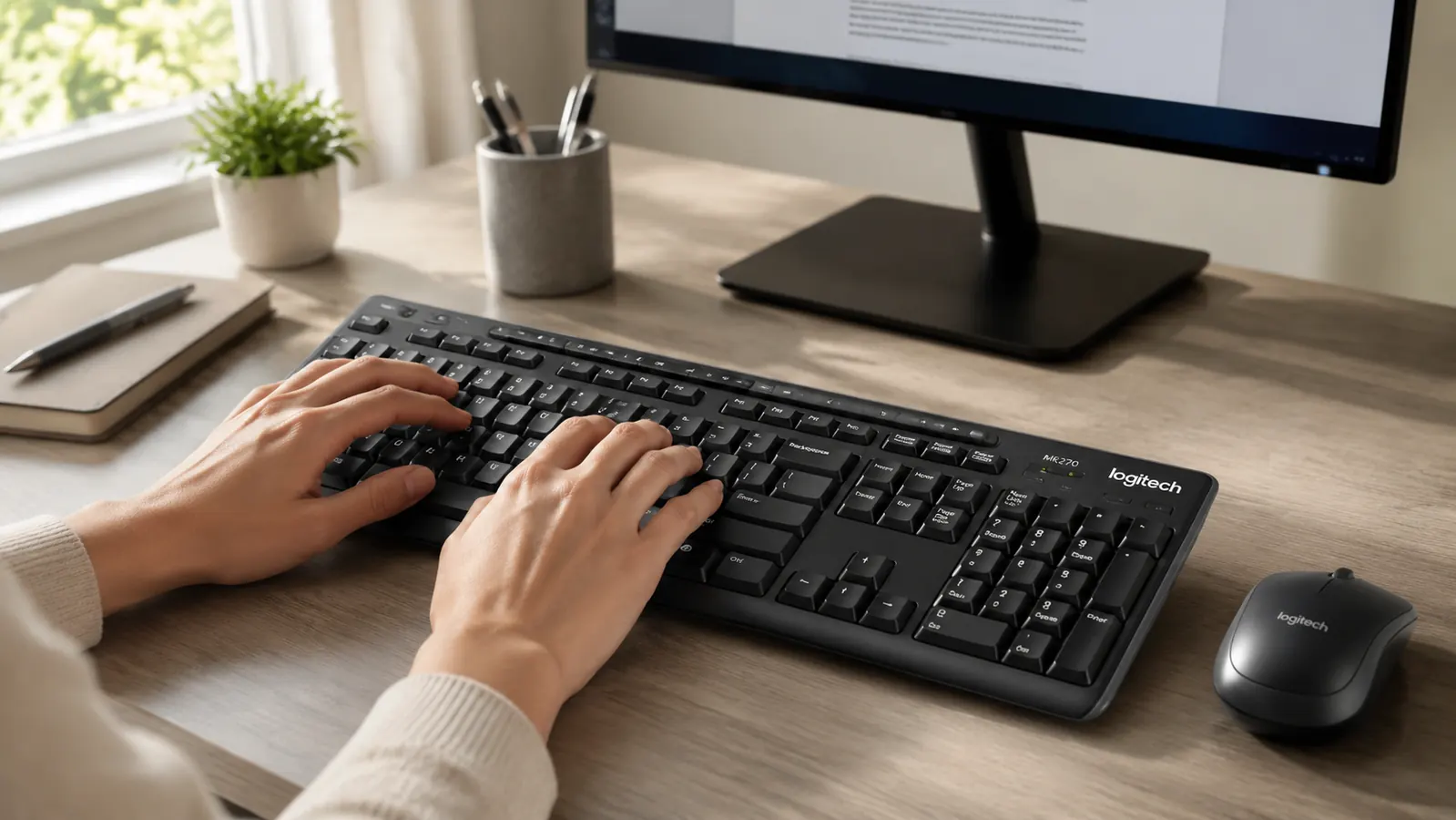
The MK270 uses a low-profile membrane keyboard. The keys are quiet, the travel is shallow, and the actuation is soft. If you have used any Logitech membrane keyboard from the past decade, you already know how this feels. It is not crisp. It is not satisfying. But it is also not fatiguing. I can type on it for two hours without my wrists complaining, which is more than I can say for some mechanical boards I have used.
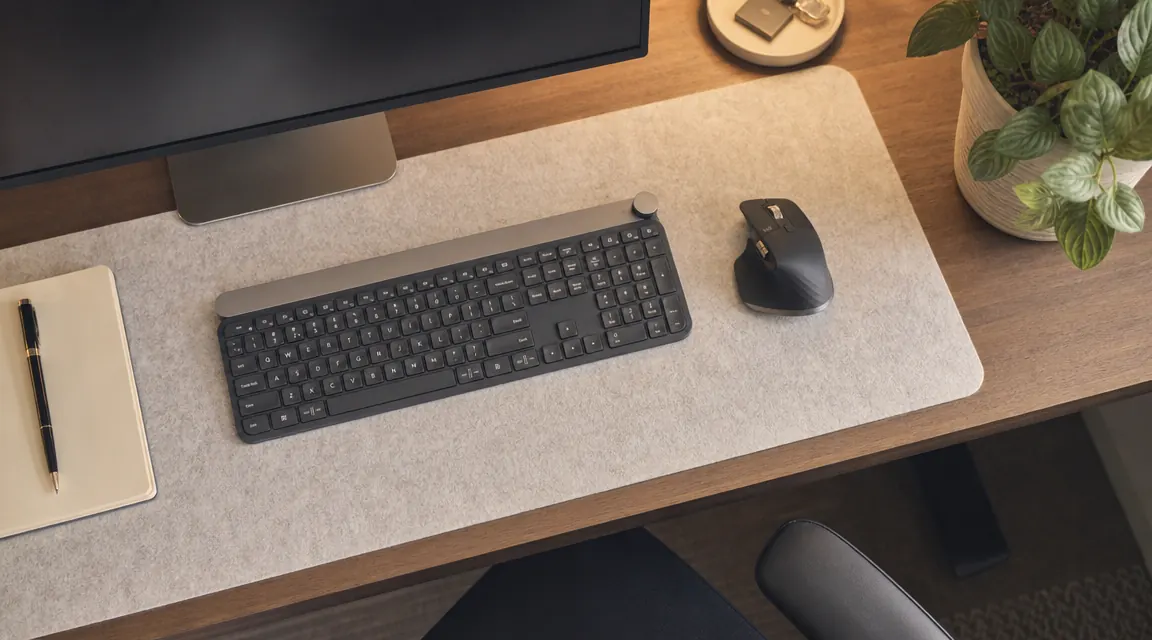
The key layout is full-size with a number pad on the right. That matters if you do any amount of data entry. The function row doubles as media controls, which requires the Logitech software to configure on Windows, but works out of the box for basic functions on most systems. The caps lock and number lock LEDs are present and legible. There are no backlights, which is a real limitation if you work in dim lighting. That is not a knock, just a fact. At this price, illuminated keys are not part of the deal.
One note on the keyboard body: it has two pop-out legs on the back for a slight tilt. They hold reliably. The rubber feet on the bottom actually grip. The whole board stays put during typing without needing to be anchored to anything. For a light membrane keyboard that weighs almost nothing, that is not a given.
The Unifying Receiver: The Part Nobody Talks About Enough
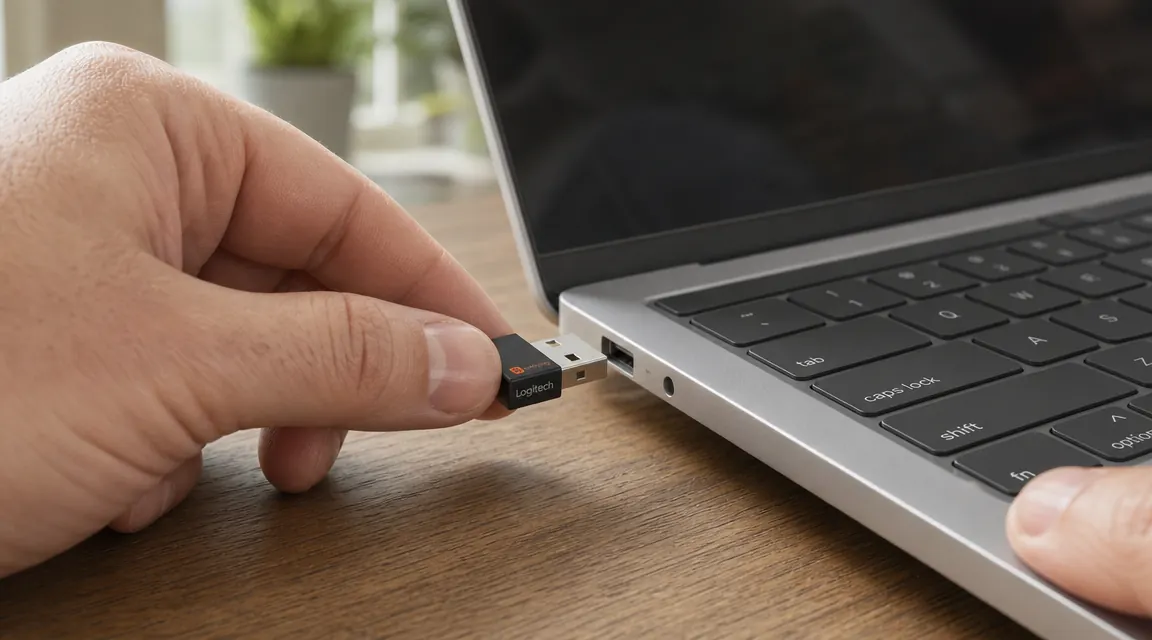
The MK270 ships with a single Logitech Unifying nano receiver. It is roughly the size of a standard USB-A plug with a few millimeters of plastic sticking out. When it is in a port, you barely know it is there. This matters practically because on a laptop or a monitor with built-in USB ports, a full-size USB dongle sticks out far enough to snag on things. The nano receiver does not. I have had mine in the same port for two years. I have forgotten it was there.
The receiver has been in the same port for two years. I have forgotten it was there. That is exactly what a good wireless receiver should accomplish.
The Unifying receiver supports up to six Logitech devices. That is more useful than it sounds. If you later add a Logitech wireless presenter, a second mouse for a different family member, or a compatible Logitech webcam, you do not need a new USB port for each one. One port handles all of them through Logitech's Unifying software. I do not take advantage of this personally, but it is a meaningful feature for people who are tight on USB ports.
The receiver uses 2.4 GHz wireless. Logitech advertises a range of 33 feet. I have not tested it at 33 feet, but I have used the keyboard through a single interior wall from about 12 feet away without any issues. Typing on my couch while the computer is on my desk works without packet loss. Wireless reliability has never been a concern.
Mouse Tracking: Better Than the Price Implies
The included M185 mouse is optical, 1000 DPI, and right-handed. It is compact, maybe 10 percent smaller than a full-size gaming mouse. My hand covers it comfortably and I have medium-sized hands. Larger hands may find it cramped after long sessions.
Tracking is smooth and accurate on a standard desk surface, on a cloth mouse pad, and on a wood-grain desk mat. I have not had it drift, skip, or jitter during normal use. The scroll wheel is single-direction notched, nothing fancy, but it works consistently. The two main buttons have a clean click with decent resistance. They have not developed any mushiness over two years, which is my main long-term concern with cheap mice.
What the mouse does not have: adjustable DPI, side buttons, or any form of ergonomic shaping. It is a symmetrical oval. Left-handed users will find it usable but not ideal. If you do any graphic design, photo editing, or gaming, look elsewhere. For office work, email, spreadsheets, and general browsing, it is genuinely sufficient.
Battery Life: The Claims vs What I Actually Experienced
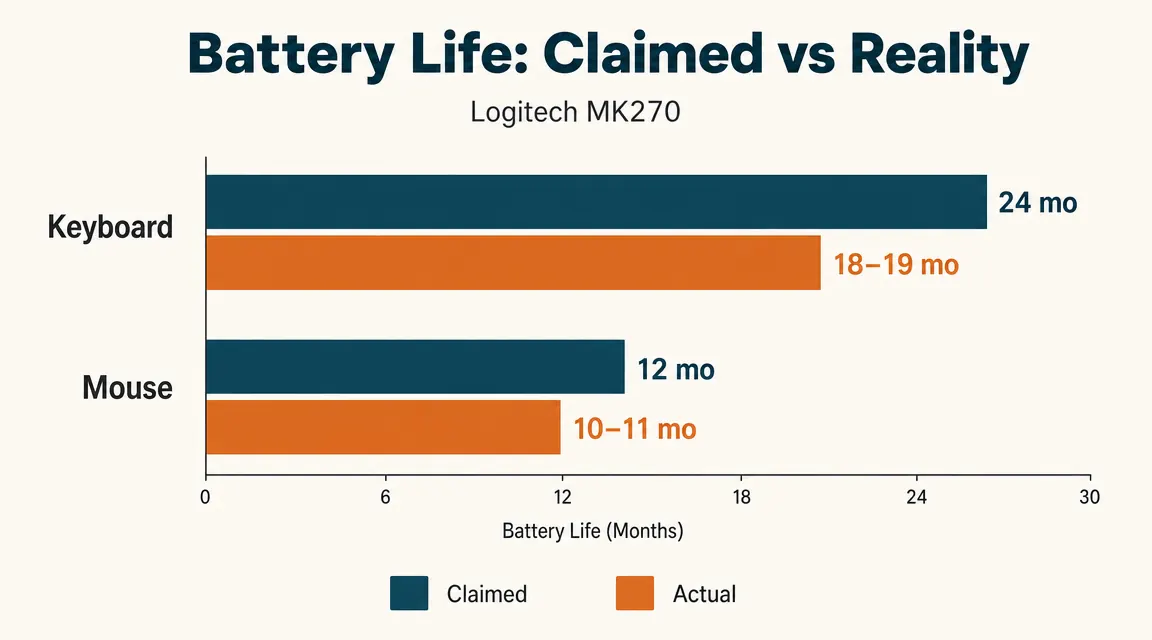
Logitech advertises 24-month battery life on the keyboard and 12-month battery life on the mouse. Those numbers assume a specific average daily usage that is lower than what most office workers actually put in. Here is what I experienced.
The keyboard shipped with two AA batteries. I have not replaced them in two years. The keyboard has a power-off switch on the back and an automatic sleep mode that kicks in after a few minutes of inactivity. If you use it moderately and remember to flip the switch when you pack it away, the 24-month claim is plausible. At heavier daily use, expect 12 to 18 months before you notice any degradation. The keyboard gives no low-battery indicator, so you get no warning. It just starts misfiring keys. Keep a spare pair of AAs nearby when the two-year mark approaches.
The mouse takes a single AA. I replaced mine at about the 10-month mark. Logitech's 12-month claim is close but optimistic for moderate daily use. The mouse does have a low-battery LED indicator on the bottom, but I missed it entirely because I never flip the mouse over. When the tracking started going inconsistent, that was my signal. Battery in, problem solved. One replacement in two years is not a complaint.
Both the keyboard and mouse take standard AA batteries, not proprietary cells, not USB rechargeable. This is a real advantage for travel setups and for people who keep AA batteries on hand anyway. You will never be stuck with a dead input device because you forgot to charge it.
Wireless Reliability Through Walls and Interference
My test environment includes a 2.4 GHz WiFi router about eight feet from the receiver, a Bluetooth speaker cycling on and off, cordless earbuds, and the normal interference load of a shared apartment building. I have not experienced a single dropout, keypress delay, or missed click in two years. That is either excellent engineering or excellent frequency management, and for a $30 peripheral, either is an acceptable answer.
One specific scenario I tested: using the keyboard with the receiver plugged into the back of a desktop tower, where the tower was under the desk and the keyboard was on top. Line of sight was blocked by the desk surface. No issues. 2.4 GHz at this range is not meaningfully affected by a wooden desk surface.
I also tried it connected through a USB hub rather than directly into a motherboard port. Worked fine. Some wireless peripherals have issues with powered hubs; the MK270 is not one of them.
What I Liked
- Rock-solid 2.4 GHz wireless with no dropouts across two years of real use
- Single nano receiver handles both devices and barely occupies the USB port
- Standard AA batteries, not a proprietary cell or USB charge cable
- Full-size layout with number pad, decent key stability, rubber feet that grip
- Mouse tracking is smooth and consistent on all standard surfaces
- 118,000-plus Amazon reviews means replacement parts, community troubleshooting, and driver support are easy to find
Where It Falls Short
- No backlighting, which is a genuine issue in dim or dark environments
- Mouse is right-handed only and compact, may feel cramped for large hands
- No adjustable DPI on the mouse, no programmable keys on the keyboard
- Keyboard offers no low-battery warning before it starts misfiring
- Membrane key feel is soft and shallow, not suitable for anyone who wants tactile feedback
- Logitech Options software required to customize function key behavior on Windows
What Surprised Me After Two Years
The thing I did not expect from a $30 combo is that the build quality would hold up. I expected rattling keys after six months. I expected the mouse scroll wheel to develop slop. I expected the keyboard legs to snap off when I tossed the board into a bag. None of that happened. The keys are still consistent, the scroll wheel is still precise, and the legs still hold their angle. Logitech has been making this class of peripheral for a long time and the construction reflects that experience.
The other surprise was how invisible the whole setup became. With a wired keyboard and mouse, you are always aware of the cables. You re-route them when they get in the way. You accidentally knock the keyboard off the desk when you pull the cable. With the MK270, the keyboard and mouse are just objects on the desk. They do what you point them at. There is nothing to manage.
If you want a deeper look at how the MK270 stacks up against the next step up in the Logitech lineup, check the MK270 vs MK345 comparison. And if you want a practical guide to getting your wireless setup dialed in cleanly, the guide to setting up a wireless keyboard and mouse for a clean work-from-home desk covers placement, receiver management, and cable routing.
Who This Is For
The MK270 is the right answer for a specific kind of buyer. If you want to cut two cables from your desk without spending real money, and you do not care about mechanical switches, backlighting, or adjustable DPI, this is exactly what you need. It works equally well as a primary setup for a light office user or a secondary keyboard for someone who already has a mechanical board for heavy typing. It is also a good pick for a shared family computer, a media PC hooked to a TV, or a secondary workstation you pull out occasionally. The plug-and-play setup means anyone in the house can sit down and use it without configuration.
Who Should Skip It
If you type for five or more hours a day and care about key feel, the MK270 will frustrate you within a week. The membrane switches are fine for light use and unbearable for sustained serious writing. Spend more and get a mechanical or at least a scissor-switch keyboard. Similarly, if you work in a dark room, the lack of backlighting is a deal-breaker. If you are a left-handed mouse user, the included mouse will not work for you. And if you need more than 1000 DPI for graphic work or gaming, this is not the right tool.
Two years of daily use and still the first thing I recommend when someone asks.
The Logitech MK270 does not need defending at this point. 118,000 buyers and two years of personal use say enough. If you want wire-free and want to stop thinking about it, this is the one.
Amazon Check Today's Price on Amazon →